
Table of Contents
Creating standout vertical content for Pinterest requires the right technical tools, an eye for clean composition, and an understanding of visual search systems. Pinterest has evolved into a visual search engine where video drives massive discovery, engagement, and outward web traffic. To capture attention on this platform, you must produce clear, well-framed vertical media. Finding the right video editing app helps you balance visual quality, clear text delivery, and efficient publishing.
When you build content with care, you help people learn, explore, and find practical inspiration. In digital design, biological patterns show us that clear structures and steady pacing keep human minds calm and focused. That same principle applies to mobile video. When a viewer scrolls through Pinterest, your video needs to feel like an inviting, well-structured space. This comprehensive guide examines the technical standards of Pinterest video, the most effective tools for the job, and the editorial techniques that turn casual viewers into dedicated followers.
Framework and Algorithmic Mechanics
Pinterest operates differently from fast-swipe social feeds. It functions as a visual discovery engine where users search with clear intent. They want to plan home renovations, discover garden layouts, learn woodworking, or buy sustainable goods. The platform organizes media through a visual graph, connecting related images, concepts, and keywords.
To thrive here, you cannot treat Pinterest like an afterthought. You must understand how the platform processes, measures, and serves your video files. Every visual element you produce with a video editing app influences how Pinterest catalogs your content.
The 9:16 Structural Canvas
Vertical video is the standard for mobile viewing, and Pinterest relies heavily on mobile interactions.The vertical 9:16 aspect ratio occupies the entire screen on modern smartphones, offering an immersive visual experience.
+---------------------------------------+  ^
|        PINTEREST TOP UI OVERLAY       |  | 240 px Top Margin
|   (Search bar, close, share icons)    |  | (Avoid critical text)
+---------------------------------------+  v
|                                       |
|                                       |
|             SAFE VIEWING              |
|                 ZONE                  |
|                                       |
|       Keep text, logos, diagrams,     |
|      and core focal action centered   |
|            in this segment            |
|                                       |
|                                       |
+---------------------------------------+  ^
|       PINTEREST BOTTOM UI OVERLAY     |  | 360 px Bottom Margin
|   (Profile, pin title, Save button)   |  | (Avoid critical text)
+---------------------------------------+  v
<-------------- 1080 px --------------->
When you configure your project within a video editing app, your canvas must be set to 1080 pixels wide by 1920 pixels tall. While Pinterest also supports standard feed pins at a 2:3 ratio (1000 by 1500 pixels), multi-clip story content and full-screen video pins achieve their highest engagement at 9:16.
Framerate selection also plays an essential role in visual comfort. Standard internet video runs at 30 frames per second (fps) or 60 fps. For educational tutorials, botanical work, or design walkthroughs, 30 fps delivers a calm, natural visual experience that mimics everyday human perception. High action or kinetic demonstrations benefit from 60 fps, which keeps fast movements crisp.
However, higher framerates demand higher bitrates. If you upload a file with an overly dense bitrate, Pinterest will compress the video heavily during processing. Aim for an export bitrate between 12 and 16 Megabits per second (Mbps) using the H.264 or modern H.265 (HEVC) video codec. This balance keeps your visual lines sharp without causing aggressive compression artifacts, banding, or color muddiness when the video goes live.
Safe Zone Geometry
A common mistake among creators is running titles, text captions, or focal actions too close to the borders of the frame. Pinterest overlays interactive buttons and profile data directly over the lower and upper sections of your video.
- The Top Zone: The top 200 to 240 pixels house the search bar, back arrows, and platform navigation elements. Text placed in this upper band will be obscured by buttons.
- The Bottom Zone: The lower 300 to 360 pixels host your account name, follow button, pin title, and the prominent red “Save” button. Any subtitle or call to action placed at the extreme bottom of the screen becomes illegible.
- The Side Margins: Maintain an inward cushion of at least 60 pixels on the left and right edges. Mobile displays have varying corner roundings and bezel cutouts that can clip text.
Your primary visual subject, supporting typography, and instructional overlays must stay anchored inside the central safe zone. A reliable video editing app allows you to display custom guide overlays or safe margin grids while you edit. Setting these guidelines up before cutting your footage prevents costly re-edits down the line.
The Dwell Time Algorithm
Pinterest measures content performance through user behavior. When a user stops scrolling and lets your video play, platform algorithms measure that viewing duration, known as dwell time. High dwell time signals to the system that your video delivers practical value and answers the user’s implicit search query.
Dwell time connects directly to downstream user actions:
- Watch Completion Rate: How many viewers reach the final frame of your clip.
- Replays: Viewers looping the video to catch a step they missed.
- Saves (Repins): The single strongest signal on Pinterest, indicating long-term user interest.
- Outbound Clicks: Taps on your destination link to view your website or online store.
If a video feels chaotic, jittery, or visually confusing, users swipe away within two seconds. To hold attention, you need steady visual pacing, clear lighting, legible typography, and structured clip progression. Your video editing app must give you precise control over clip trims, audio smoothing, and graphic pacing so that your content feels balanced, helpful, and easy to follow.
Selecting the Ideal Mobile and Desktop Editor
Before choosing a video editing app, evaluate your editing workstation and production style. You might prefer editing on a smartphone while standing in a greenhouse or workshop, or you might prefer the precision of a desktop workstation with multiple monitors. Whatever your environment, your chosen video editing app should meet five fundamental technical requirements.
       ESSENTIAL EVALUATION CRITERIA FOR PINTEREST VIDEO
+---------------------------------------------------------------+
|  1. NATIVE 9:16 RATIOS     |  Zero letterboxing, custom guides |
|  2. AUDIO MULTI-TRACKING   |  Independent voice, music, ambient|
|  3. ACCURATE CAPTIONING    |  Automated text with font styling |
|  4. HIGH-GRADE ASSET BASE  |  Clean vectors, overlays, textures|
|  5. HARDWARE ACCELERATION  |  Fast H.264/H.265 render pipelines|
+---------------------------------------------------------------+
1. Native 9:16 Export Presets Without Letterboxing
The software must treat vertical framing as a first-class citizen. It should allow you to start a project natively in 1080 by 1920 pixels without forcing black bars or awkward borders onto your source media. The export dialog must provide direct vertical options without requiring manual, multi-step pixel adjustments.
2. Multi-Track Audio and Voiceover Synchronization
Clear audio is just as important as clear video. Your video editing app must provide separate audio tracks so you can balance spoken instructions, ambient environmental sounds, and subtle background music. It should offer essential audio tools like ducking, which automatically lowers the music volume whenever a voiceover track is speaking.
3. Non-Destructive Auto-Captioning and Kinetic Typography
Most Pinterest users browse mobile feeds with their device audio turned off. If your video relies solely on spoken words to deliver its message, viewers will scroll past. Your video editing app needs automated speech-to-text generation that produces synchronized captions. You must also be able to adjust font sizes, change weights, alter line heights, and place background boxes behind letters to preserve legibility against varied visual backgrounds.
4. Asset Library Access
Building instructional videos requires supplementary graphics, such as pointer arrows, subtle frames, brand marks, and title backgrounds. A solid video editing app includes a library of royalty-free sound effects, organic acoustic loops, and clean vector shapes. This saves you from having to hop between external stock platforms while assembling your timeline.
5. Rendering Performance and Hardware Acceleration
Video rendering can consume considerable computer processing power. When you edit several pins a week, slow export times disrupt your creative momentum. Look for a video editing app that uses your device hardware acceleration, whether that means Apple Metal, Nvidia NVENC, or modern mobile System-on-Chip (SoC) media engines. Efficient rendering lets you export polished files in seconds rather than minutes.
In-Depth Comparative Review: The Top Contenders
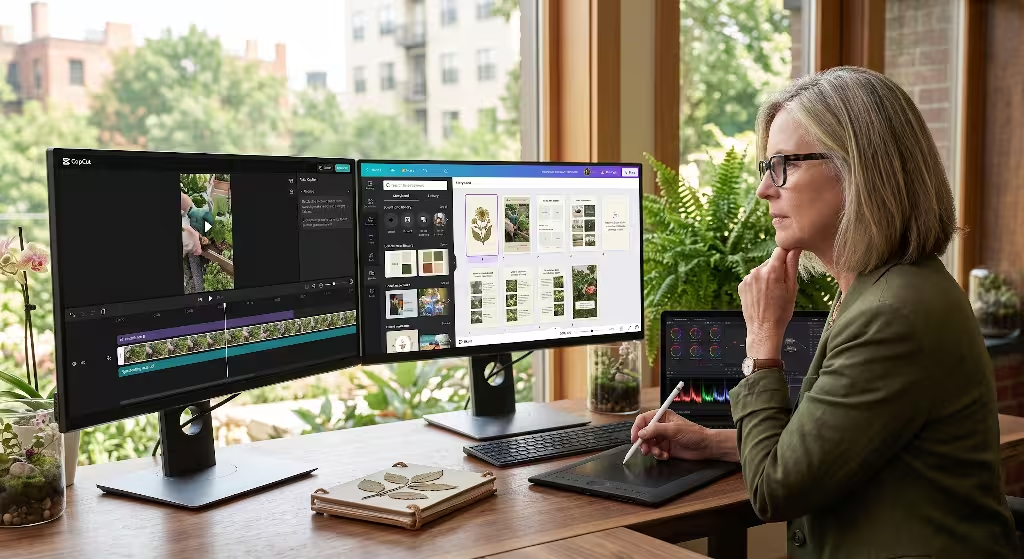
The market offers dozens of creative tools, but only a handful stand out for Pinterest video creation. Here is an honest, practical look at five leading solutions across mobile and desktop platforms.
+------------------+-----------------------+----------------------+--------------------+
| Application      | Primary Strength      | Ideal Production Tier| Learning Curve     |
+------------------+-----------------------+----------------------+--------------------+
| CapCut           | Auto-Captions & Speed | Mobile / Fast Web    | Beginner - Moderate|
| Canva            | Brand Consistency     | Multi-Slide Graphics | Beginner           |
| Adobe Premiere   | Color and Audio Sync  | Cross-Device Pro     | Moderate           |
| InShot           | Rapid Field Slicing   | Direct Mobile Only   | Beginner           |
| DaVinci Resolve  | Precision Color & Mix | High-End Desktop     | Advanced           |
+------------------+-----------------------+----------------------+--------------------+
1. CapCut: Best Overall for Kinetic Pacing and Auto-Captions
CapCut has grown into one of the most widely used vertical editing tools in the world, and for good reason. Its toolset is built specifically around the requirements of modern mobile-first video platforms.
Technical Strengths
- Speech Recognition: Its automatic caption generator is fast and remarkably accurate. It handles diverse accents, technical jargon, and natural speech rhythms with minimal correction needed.
- Smart Cutout Tools: The software lets you remove or separate video backgrounds without requiring a physical green screen studio setup.
- Kinetic Text Animations: You can apply animated word-by-word reveals that highlight key concepts, keeping viewers engaged without visual clutter.
Practical Weaknesses
- Watermark Management: The free version automatically adds a branded closing card to the end of your timeline that you must remember to delete manually on every single project.
- Subscription Creep: An increasing number of advanced features, transition packages, and export options now sit behind the paid “Pro” tier.
- Cloud Storage Oversight: Enterprise brands and professional firms must review its user data handling and cloud backup agreements to ensure compliance with company privacy guidelines.
Best Production Workflow
CapCut excels at fast-paced instructional content, craft tutorials, gardening tips, and everyday office updates. If your creative process requires shooting footage on your phone, slicing it together quickly, adding accurate subtitles, and publishing promptly, this video editing app provides the fastest path to a finished export.
2. Canva (Video Suite): Best for Brand Governance and Multi-Page Layouts
Canva began as an online graphic design platform, but its integrated video editor has matured into a capable production tool, especially for multi-scene educational content.
Technical Strengths
- Brand Kits: Canva allows you to store specific hex codes, approved typefaces, and high-resolution logo marks in one accessible place. This keeps every pin aligned with your brand identity.
- Multi-Slide Board Structure:When Pinterest merged Idea Pins into a unified format, it retained support for multi-page visual storytelling. Canva uses a slide-based storyboard timeline that makes it easy to structure step-by-step educational carousels and slideshow videos.
- Asset Library: You gain immediate access to millions of vector illustrations, nature textures, framing boxes, and clean geometric elements without leaving your project workspace.
Practical Weaknesses
- Timeline Trimming Limitations: Canva lacks micro-frame trimming and fine-grained ripple editing. Precise audio-to-video alignment can feel clumsy compared to a dedicated non-linear editing timeline.
- Keyframing Absence: You cannot execute advanced position keyframing or complex speed ramps across variable clip intervals.
Best Production Workflow
Canva is ideal for design firms, real estate agencies, interior planners, and educators who build structured carousels, text-rich summaries, or aesthetic mood boards. If your pin relies heavily on clean typography, structured layout frames, and consistent brand palettes, this video editing app simplifies your production pipeline.
3. Adobe Premiere Rush and Express: Best for Color Science and Cross-Platform Sync
Adobe approaches mobile video from decades of experience building industry-standard creative software. Premiere Rush and Adobe Express together bridge the gap between simple mobile assembly and professional production suites.
Technical Strengths
- Color Handling: Adobe features a sophisticated color engine. You can apply Look-Up Tables (LUTs), adjust shadow tones, lift midtones, and balance warm outdoor lighting with precision.
- Cross-Device Continuity: You can begin an edit on your phone while traveling, refine your title placements on an iPad, and finalize color grading on your primary desktop workstation.
- Auto-Reframe Mechanics: If you capture footage horizontally on a mirrorless camera, Adobe’s intelligent tracking system keeps the primary subject centered when converting the frame to 9:16.
Practical Weaknesses
- Pricing Barrier: Accessing the complete Adobe ecosystem requires an ongoing Creative Cloud subscription, which can be costly for solo creators or independent small businesses.
- Hardware Demands: On older mobile devices, rendering high-bitrate files can generate heat, deplete battery reserves, and occasionally cause timeline stutter.
Best Production Workflow
This setup is ideal for experienced creators, photographers, and studios who capture footage on dedicated cameras and demand accurate natural color reproduction. When visual depth, skin tones, and subtle botanical color gradations matter most, this video editing app lineup delivers professional reliability.
4. InShot: Best Lightweight Mobile Tool for Quick Field Cuts
InShot remains a popular choice for creators who want an uncluttered, responsive editing tool directly on their mobile phone or tablet.
Technical Strengths
- Canvas Sizing: Switching between 9:16 vertical, 1:1 square, and 2:3 Pinterest formats requires just a single tap, with clean options to blur or color the background fill.
- Responsive Performance: The application launches quickly, handles timeline scrubbing smoothly, and exports finished files with minimal delay, even on older phone models.
- Speed Ramping: It is easy to speed up slow tasks, like building a raised garden bed or assembling a piece of furniture, and then slow down for the final reveal.
Practical Weaknesses
- Track Layer Limitations: Managing multiple layers of video overlays, secondary sound effects, and text badges on a single timeline can feel cramped and cumbersome.
- Ad-Supported Free Tier: The free version relies on intrusive pop-up advertisements during exports, requiring an in-app purchase to remove the ads and unlock the full interface.
Best Production Workflow
InShot is well suited for solo entrepreneurs, landscape crews, ceramicists, and craftspeople who document their work on site. When you need to trim three short clips, speed up a demonstration, and save the result to your camera roll in under five minutes, this video editing app handles the job cleanly.
5. DaVinci Resolve: Best Professional Engine for Zero Compression Loss
DaVinci Resolve, developed by Blackmagic Design, is an industry-standard desktop suite used for Hollywood films and commercial broadcasts. It also offers a dedicated iPad version for mobile workflows.
Technical Strengths
- Fairlight Audio Suite: Resolve includes a full digital audio workstation. You can remove background air conditioner hum, balance voice recordings, and equalize ambient sounds with surgical accuracy.
- Node-Based Color Grading: Its color management tools are unmatched. You can balance foliage greens, deepen earth tones, and preserve highlight details in bright skies without introducing color banding.
- Free Tier Capability: The free version of DaVinci Resolve provides an expansive set of professional editing, audio, and color tools with zero watermarks on standard exports.
Practical Weaknesses
- Steep Learning Curve: The software requires a firm grasp of non-linear editing concepts, project databases, and timeline structures. It is not an app you master in an afternoon.
- Rigorous System Requirements: You need a capable computer with a dedicated graphics card and sufficient memory to run the software smoothly.
Best Production Workflow
DaVinci Resolve is the top choice for architectural studios, documentary creators, and premium visual brands who produce high-production portfolio tours and refuse to compromise on visual fidelity. If your priority is absolute image quality and nuanced audio mastering, this video editing app stands well above standard mobile tools.
Comparative Evaluation Matrix
To help you choose the right platform for your production style, this matrix compares how each tool handles core vertical video requirements.
| Software | Core Specialty | Safe Zone Tools | Subtitle Accuracy | Price Model | Mobile vs Desktop |
| CapCut | Fast cuts and kinetic captions | User-placed guide layer | High precision | Free with Pro upsells | iOS, Android, Web, Desktop |
| Canva | Brand consistency and slides | Built-in margin rulers | Moderate | Free tier, Pro subscription | Web, iOS, Android |
| Adobe Express / Rush | Color grading and asset sync | Preset safe margins | High precision | Subscription model | iOS, Android, Desktop |
| InShot | Quick on-site mobile trims | Manual canvas fitting | Moderate | Free with ads, one-time unlock | iOS, Android |
| DaVinci Resolve | Professional color and audio | Customizable markers | High (Studio edition) | Generous Free, $295 Studio | Desktop (Mac, Windows), iPad |
Review your current hardware and daily publishing cadence. If you produce ten short tutorial pins every week, CapCut or InShot will keep your workflow nimble. If you publish three deeply researched, branded architectural analyses per month, Canva, Adobe, or DaVinci Resolve will yield more polished results.
Organic Architecture and Biophilic Content Principles
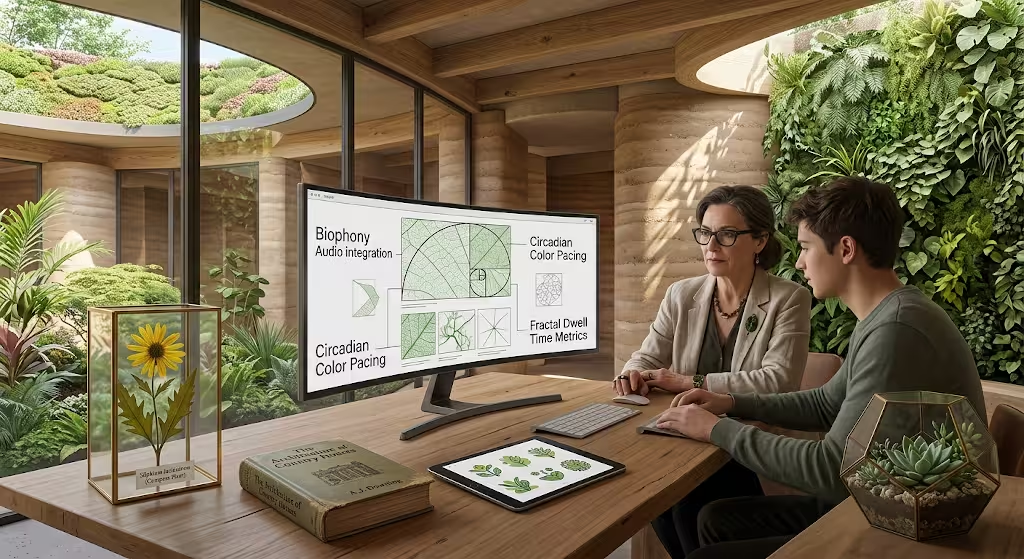
Creating sustainable, high-performing video content involves more than just cutting clips together. It requires an understanding of how human visual perception works. In our work at Silphium Design, we focus on biophilic design: the science of connecting people to nature through physical and digital environments.
Human beings evolved in natural landscapes defined by organic textures, balanced soundscapes, and circadian light patterns. Modern digital feeds often assault the senses with rapid flashing cuts, harsh synthetic sound effects, and oversaturated colors. This sensory overload causes viewer fatigue. By applying natural design principles inside your video editing app, you create content that calms the viewer, holds their attention, and encourages deeper engagement.
       BIOPHILIC PACING TIMELINE: THE GOLDEN SPIRAL
0.0s             1.6s                 4.2s                     8.4s
  |----------------|-------------------|-------------------------|
      Visual Hook     Core Information        Action / Transformation
       (1.618s)           (2.618s)                    (4.236s)
Visual Ecology
Visual ecology examines how light, color, and visual organization influence cognitive stress. When crafting video for Pinterest, consider the color temperature of your scenes.
Stark blue-white lighting can feel cold and clinical. Whenever possible, color-grade your footage toward warmer, sun-inspired amber and golden tones. Warm light triggers an evolutionary sense of safety, comfort, and focus. Use the color adjustment panel inside your video editing app to soften harsh white highlights, gently elevate deep shadows, and preserve the natural color of wood, stone, and plant leaves.
Texture is another essential component of visual ecology. Flat, sterile digital vectors can feel detached and artificial. You can introduce organic depth by layering subtle textures over your digital titles, such as unbleached paper textures, woven linen surfaces, or subtle watercolor washes. These soft, natural surfaces give your digital graphics an inviting, tactile quality that resonates with viewers seeking thoughtful lifestyle, home, or creative inspiration.
Audio Landscapes
Sound strongly influences how long people stay on your content. Harsh electronic notification chimes and aggressive digital whooshes create unnecessary cognitive tension. Instead, build your audio track around biophony: the natural sounds of living ecosystems.
Consider layering the quiet rustle of wind through birch leaves, the soft trickle of moving water, natural footfalls on a forest path, or the gentle song of outdoor birds beneath your primary voiceover. Use your video editing app to reduce this environmental audio to a subtle background level, around minus 22 to minus 26 decibels (dB), while keeping your spoken instruction centered at minus 12 to minus 14 dB.
This acoustic foundation masks harsh microphone hiss and creates a comfortable listening environment. Viewers will feel relaxed and engaged, which extends your pin dwell time naturally.
Structural Pacing and the Golden Ratio
Natural structures, from the curve of a nautilus shell to the arrangement of sunflower seeds, reflect proportional mathematical patterns like the Golden Ratio (approximately 1 to 1.618). You can apply this organic proportion directly to your timeline pacing to create comfortable, balanced visual sequences.
Instead of cutting clips at random intervals, design your sequence around naturally expanding time blocks:
- The Visual Hook (0.0 to 1.6 seconds): Open with a clear view of the final result or primary subject. This answers the viewer’s initial curiosity and anchors their attention immediately.
- The Supporting Context (1.6 to 4.2 seconds): Introduce the core materials, tools, or initial steps. This 2.6-second block gives the viewer enough time to understand the setup without losing interest.
- The Core Demonstration (4.2 to 8.4 seconds): Dedicate a 4.2-second sequence to the main process or transformation. Use gentle, steady motion across this block.
- The Reflection and Action (8.4 to 13.6 seconds): Conclude with a view of the completed project, accompanied by a clear on-screen call to action that encourages viewers to save the pin or visit your linked site.
Pacing your cuts to expand in harmony with the Golden Ratio gives your video a natural rhythm. It avoids both the chaotic rush of frantic social edits and the sluggish drag of unedited raw footage.
Frequently Asked Questions about Video Editing Apps
Optimizing video for Pinterest requires a firm grasp of search engine mechanics. Pinterest does not simply evaluate engagement metrics; it analyzes your content through optical character recognition, speech transcription, and textual metadata.
+--------------------------------------------------------------+
|            PINTEREST MULTI-MODAL INDEXING PIPELINE           |
|                                                              |
|   +-----------------------+     +------------------------+   |
|   | Visual Frame Analysis | --> | Identifies Objects,    |   |
|   | (Convolutional Vision)|     | Plants, and Colors     |   |
|   +-----------------------+     +------------------------+   |
|                                                              |
|   +-----------------------+     +------------------------+   |
|   | On-Screen Text (OCR)  | --> | Scrapes Title Cards    |   |
|   |                       |     | and Subtitle Words     |   |
|   +-----------------------+     +------------------------+   |
|                                                              |
|   +-----------------------+     +------------------------+   |
|   | Spoken Audio Stream   | --> | Converts Voiceover     |   |
|   |                       |     | to Searchable Text     |   |
|   +-----------------------+     +------------------------+   |
|                                                              |
|   +-----------------------+     +------------------------+   |
|   | Metadata Fields       | --> | Evaluates Board Name,  |   |
|   |                       |     | Pin Title, and Notes   |   |
|   +-----------------------+     +------------------------+   |
+--------------------------------------------------------------+
Here are clear answers to the most common technical questions creators ask when producing video content for the platform.
What is the difference between an Idea Pin and a regular Video Pin?
Historically, Pinterest offered two distinct video formats: standard Video Pins, which allowed direct outward links, and Idea Pins, which offered multi-page swipeable stories but did not support outbound URLs. This setup frustrated creators who wanted to direct Pinterest traffic to their own websites and stores.
Pinterest has resolved this division by merging Idea Pins and Video Pins into a single, unified Pin format.Every pin uploaded today can include multiple video segments, static photographic slides, and a direct outbound website link. When creators search for the best video editing app for idea pins, they are looking for software that can produce sequential, multi-part, full-screen vertical stories that guide viewers through a complete idea while providing an easy path to click through to an external page.
What video dimensions and file types does Pinterest support?
Pinterest supports several specific media parameters.Adhering to these specifications prevents playback errors, slow loading times, and automatic platform cropping:
- File Containers:
.MP4,.MOV, or.M4V. MP4 encoded with H.264 video and AAC audio offers the highest reliability across all web browsers and mobile devices. - Aspect Ratios:Vertical 9:16 (1080 by 1920 pixels) is strongly recommended for full-screen immersive video.Standard vertical 2:3 (1000 by 1500 pixels) is also supported and fits neatly alongside traditional static pins in the home feed.
- Maximum File Size:Up to 2 Gigabytes (GB) per upload. In practice, you should keep your files well below 100 Megabytes to ensure fast streaming and prevent mobile playback buffering.
- Duration Constraints:Video files can run from 4 seconds up to 15 minutes in length. However, Pinterest metrics show that focused clips running between 15 and 60 seconds achieve significantly higher completion rates and overall saves.
Make sure to select these exact project dimensions inside your video editing app before you begin cutting your footage together.
Can I post Idea Pins directly from third-party video editors?
You can write and prepare your content in third-party scheduling platforms like Tailwind, Later, or Buffer, but you should not publish directly from your video editing app without a careful final check.
Export your finished video file directly to your local computer or smartphone storage first. Then, upload the file manually through the native Pinterest desktop portal or mobile application.
Uploading through Pinterest’s native interface offers two distinct advantages:
- Interactive Product Tagging: You can tag specific products or catalog items directly onto the video frames, making it easy for viewers to shop your recommendations.
- Topic Tag Selection: Pinterest provides internal taxonomy tags during manual upload. These system tags help categorize your pin within the platform visual search graph, giving it immediate context that third-party scheduling tools can sometimes miss.
Should I put music or sound on my Idea Pins?
Yes, but you must design your audio with a clear dual-track strategy.
Between 70% and 85% of mobile users browse digital feeds with their device speakers muted. If your video only conveys its message through spoken voice, most viewers will miss the point entirely. Every critical step, measurement, tip, and call to action must appear as legible on-screen text.
At the same time, you cannot ignore the remaining group of viewers who listen with their sound turned on. For these users, an unedited, silent video feels unfinished. Use your video editing app to blend a balanced acoustic backing track beneath clear spoken instructions. By designing your video to work silently through text while offering rich audio for those listening, you serve both viewing styles effectively.
How do I optimize Idea Pins for in-app Pinterest SEO?
Pinterest’s search index relies on an automated visual and textual parsing pipeline. Optimizing your content for search visibility involves four coordinated steps:
+--------------------------------------------------------------+
|             FOUR-STEP PINTEREST SEO EXECUTION PLAN           |
+--------------------------------------------------------------+
| 1. KEYWORD IN TITLES    | Add primary keywords to title cards|
| 2. OCR-FRIENDLY TEXT    | Use high-contrast, clean fonts     |
| 3. CLEAR SPEECH AUDIO   | Speak keywords clearly for parsing |
| 4. METADATA MAPPING     | Align Pin title, notes, and boards |
+--------------------------------------------------------------+
- On-Screen Optical Character Recognition (OCR): Pinterest systems scan the visual frames of your video for written words. When you add your primary search phrase to a title card in your video editing app, the system indexes those words as relevant topical indicators. Use bold, clean typefaces with strong contrast against the background so the platform scanner can read every character cleanly.
- Spoken Word Transcription: Pinterest’s audio parsing system automatically transcribes voiceover tracks into searchable text. Clearly state your primary subject and supporting keywords in your voiceover during the first ten seconds of your clip.
- Pin Title and Description Alignment: Your on-screen text must align directly with your written Pin Title and Pin Description. If your video teaches viewers how to propagate fiddle-leaf figs, that exact phrase should appear in your on-screen title card, your spoken voiceover, your pin title, and your written description.
- Board Taxonomy: Save your finished pin to a well-organized board dedicated to that specific topic. The title, notes, and related pins on that board provide the algorithm with valuable context, helping it catalog your video alongside relevant visual content across the platform.
Technical Step-by-Step Production Guide
To bring these principles together into a reliable workflow, follow this practical step-by-step production plan. This repeatable process will help you produce clean, engaging vertical pins without unnecessary friction.
Step 1: Pre-Production and Canvas Calibration
Before you record any video, outline your instructional steps. Choose two primary colors and one clean font family to keep your branding consistent.
Open your video editing app and create a custom project canvas measuring 1080 pixels wide by 1920 pixels tall. Set the project framerate to 30 frames per second. Turn on your safe zone guides or draw temporary visual rulers that leave 240 pixels open at the top of the frame and 360 pixels open at the bottom.
Step 2: Ingest and Assembly
Import your recorded video clips into the project media bin. Drop your primary demonstration clips onto the main editing track.
Trim out long pauses, uneven camera adjustments, and unnecessary movements. Arrange the clips to follow the natural rhythm of the Golden Ratio: open with an immediate hook, introduce the basic setup, demonstrate the core action, and conclude with the finished result.
Step 3: Audio Balancing and Environmental Ambience
Add your voiceover track to an independent audio track. Use an equalizer to clean up low-end microphone rumble below 80 Hertz (Hz), and apply a subtle compressor to keep your vocal levels consistent throughout.
Drop a calm, natural background soundscape onto a secondary audio track. Adjust its volume level so that it sits quietly in the background without competing with your spoken voice. Enable automatic audio ducking if your video editing app provides it.
Step 4: Kinetic Typography and Accessibility Captions
Run the automated speech-to-text caption generator in your video editing app. Review the generated captions carefully to fix any misspelled technical terms, plant names, or brand references.
Style your text with a clean, sans-serif font set to a legible size. Add a subtle, semi-transparent background box behind your words to ensure they remain easy to read regardless of what appears in the video background. Position the captions inside the central safe zone, well clear of Pinterest’s bottom profile bar and save button.
Step 5: Color Science and Visual Grading
Open your color adjustment workspace. Evaluate the overall color balance of your clips. Warm up cool, blue-tinted scenes by shifting your white balance slightly toward amber and gold.
Slightly lift dark shadows to make background details visible on mobile screens running at low brightness levels. Avoid over-saturating your colors; natural, true-to-life tones build credibility with viewers seeking authentic guidance.
Step 6: Master Export Settings
Open your software export window. Ensure your output parameters match Pinterest’s preferred specifications:
- Format:MP4 container
- Codec: H.264 or H.265
- Resolution:1080 by 1920 pixels
- Bitrate: Variable Bitrate (VBR), targeting 14 Mbps
- Audio: AAC Stereo, 48 kHz, 320 kbps
Render the finished file to your local drive. Watch the exported video on your mobile phone to verify that all text stays comfortably within your screen safe zones, the audio balance feels pleasant, and the colors look natural.
Long-Term Channel Consistency and Growth
Succeeding on Pinterest requires patience and steady creative execution. Unlike conventional social media networks where posts disappear from feeds after twenty-four hours, a well-optimized pin functions as an evergreen digital asset. A tutorial or design guide published today can continue gathering impressions, repins, and site visits for months or even years.
Establish a regular, sustainable production routine. Rather than trying to edit individual pins each day, set aside dedicated time to batch-process your content. Record your raw footage in focused sessions, then assemble your clips systematically inside your video editing app. Create reusable project templates that already include your safe zone guides, typography choices, and acoustic background tracks.
By treating your Pinterest video production as an extension of good design, you build an enduring, highly discoverable visual library. With thoughtful composition, stable pacing, and the right video editing app supporting your workflow, your content will stand out as a calm, helpful resource in a noisy digital world.