
Table of Contents
Digital design often struggles to recreate the natural harmony we see in the physical world. When you walk through a forest, look at a riverbank, or watch a sunset, the colors never clash. Nature balances shades of green, earthy browns, soft neutrals, and bright floral accents without effort. On a computer screen, mixing those exact same colors can feel hard. Designers often guess which hex codes look good together, which leads to artificial or jarring layouts. This is where an AI color palette generator changes the entire creative process.
An AI color palette generator takes a photograph and uses computer vision to pull out the most important shades. It does not just grab five random pixels. Instead, an AI color palette generator analyzes the light, finds the main subjects, clusters similar tones, and creates a balanced set of colors that work together. When you use an AI color palette generator from photo sources, you bring real-world harmony directly into digital interfaces, branding packages, and modern websites.
At Silphium Design, our work with biophilic design shows that people feel calmer and stay focused longer when digital screens reflect the natural world. In this comprehensive guide, we will explore how an modern AI color palette generator works under the hood, how it extracts balanced tones, and how you can use an AI color palette generator to build stunning, accessible digital experiences.
Computational Mechanics of Image-to-Palette Generation
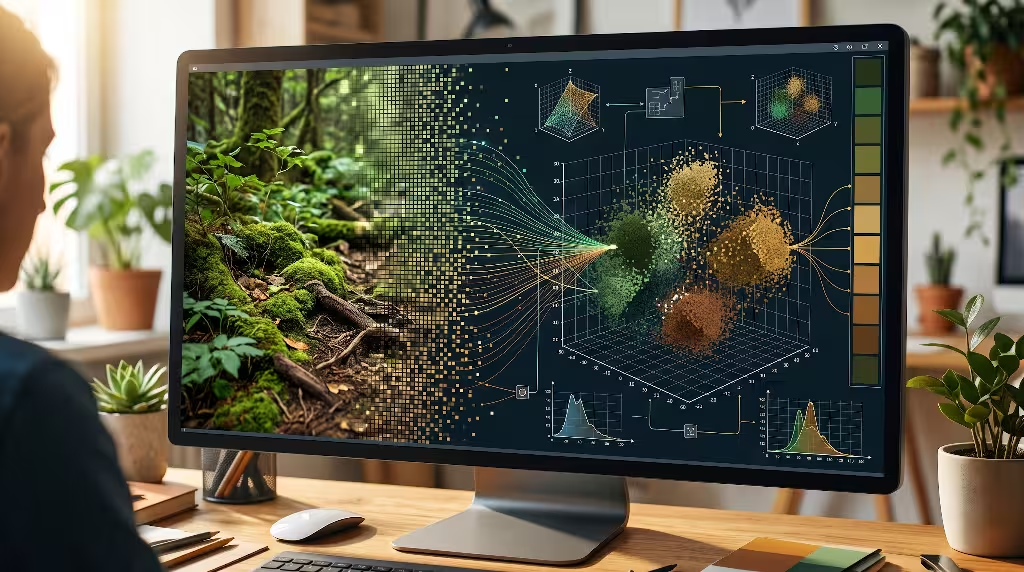
To understand how an AI color palette generator works, we have to look inside a digital image. A digital photograph is a giant grid of millions of tiny square dots called pixels. Each pixel stores numbers that tell your monitor how much red, green, and blue light to shine. If you simply picked the five most common pixels in an outdoor photo, your whole palette might end up being five slightly different shades of sky blue. That is not a useful palette. A true AI color palette generator uses mathematical algorithms to group similar pixels together and find meaningful color families.
The most common algorithm used by an AI color palette generator is called K-Means clustering. Imagine dumping a bucket of ten thousand colored marbles onto a gym floor. Your job is to sort all those marbles into five distinct piles. You start by picking five random spots on the floor to be your pile centers. You look at each marble, figure out which center it is closest to in color, and roll it toward that center.
Once all marbles are grouped, you look at each pile, find its new average color center, and move the center marker. You repeat this rolling and grouping process several times until the centers stop moving. When an AI color palette generator runs K-Means clustering on an image, it groups millions of pixels into mathematical clusters and calculates the exact center of each cluster.
Before K-Means became standard, older tools used simpler techniques like the Median Cut algorithm or Octree quantization. The Median Cut method works like cutting a loaf of bread. It puts all the pixels into a three-dimensional box based on their red, green, and blue values. It finds the longest side of the box and slices it in half down the middle. It keeps slicing each smaller box until it has five, eight, or sixteen boxes. The average color inside each box becomes a swatch.
An Octree method builds a tree with eight branches at each level to sort colors into buckets. While these older methods are very fast, a modern AI color palette generator prefers K-Means and deep neural networks because they produce smoother, more accurate color groupings.
The color space used during these calculations makes a huge difference. Most digital images use standard red, green, and blue, known as sRGB. The problem with sRGB is that it does not match the way human eyes see. Human eyes are far more sensitive to tiny changes in green and yellow than they are to changes in deep blue. If an AI color palette generator calculates color distances using raw sRGB numbers, it makes mathematical mistakes that look ugly to human eyes.
To fix this, an advanced AI color palette generator converts the image pixels into a perceptual color space, such as CIELAB or CAM16. In the CIELAB color space, the distance between any two color values matches the exact difference a human eye sees. The measurement of this visual distance is called Delta E. When an AI color palette generator groups pixels using Delta E in CIELAB, it avoids muddy tones and captures the true visual warmth of the scene.
Machine learning takes this process one step further. Older scripts only looked at raw pixel numbers, but an AI color palette generator with computer vision understands what is in the picture. By using vision transformers and deep neural networks, an AI color palette generator can tell the difference between the main subject, such as a bright red cardinal, and the blurry background leaves. It recognizes that the cardinal is the visual focus of the photograph, even if the bird only covers five percent of the total image area. The AI color palette generator protects that tiny cluster of red pixels so it does not get erased by the sea of background greens.
The Algorithmic Hierarchy: Dominant, Accent, and Neutral Isolation
A functional color system needs a clear visual hierarchy. When you build a website or design an app, you cannot use every color in equal amounts. If a page uses twenty percent bright red, twenty percent neon yellow, and twenty percent dark blue, the user gets overwhelmed. Professional designers follow structured formulas, such as the sixty-thirty-ten rule. In this rule, sixty percent of the layout is a calm background color, thirty percent is a supporting secondary color, and ten percent is an intentional accent color for buttons and links. A quality AI color palette generator helps you establish this exact hierarchy automatically.
The primary challenge in color extraction is the battle between pixel frequency and visual saliency. Frequency simply means how many pixels share a specific color. If you take a picture of a mountain valley, eighty percent of the pixels might belong to gray rocks and white clouds.
Saliency, on the other hand, describes where the human eye naturally looks. If there is a small patch of golden wild sunflowers in the lower corner of that mountain valley, your eyes jump straight to the flowers. A simple color tool would ignore the sunflowers completely because they make up less than two percent of the image. An intelligent AI color palette generator uses saliency mapping to detect high-contrast, visually interesting focal points. It pulls the golden yellow out as a primary accent swatch while using the mountain rock tones as background neutrals.
To find these visual focal points, an AI color palette generator often applies edge-detection filters and depth mapping. High-frequency edges usually outline the main subjects in an image, while smooth, flat areas represent the sky, walls, or water. By scoring pixels based on their proximity to sharp edges, the AI color palette generator learns which colors carry the story of the image. The software gives extra mathematical weight to those pixels during the clustering step.
Once the clusters are calculated, an AI color palette generator classifies each output color into a specific design role:
- Dominant Surface Tones: These are the wide-area colors that form the foundation of your digital screen. An AI color palette generator identifies the most stable, low-energy tones from the photo to serve as canvas backgrounds, cards, and container panels.
- Structural Neutrals: These are deep grays, soft off-whites, slate blues, or warm tans that give structure to borders, dividers, and body text. An AI color palette generator extracts these shades to ensure reading elements feel grounded and natural.
- Secondary Supporting Tones: These colors build brand identity and provide visual depth. The AI color palette generator pulls these from secondary environmental layers, such as shadows on foliage or ripples in water.
- Functional Accent Hues: These are the high-energy, eye-catching pops of color. An AI color palette generator isolates these rare, vibrant hues from floral petals, sunlight glints, or autumn berries so you have clear colors for buttons and calls to action.
By sorting extracted colors into this structured hierarchy, an AI color palette generator gives you a ready-to-use kit rather than an unorganized pile of paint swatches.
Biophilic Resonance: Deriving Organic Color Systems from Natural Imagery
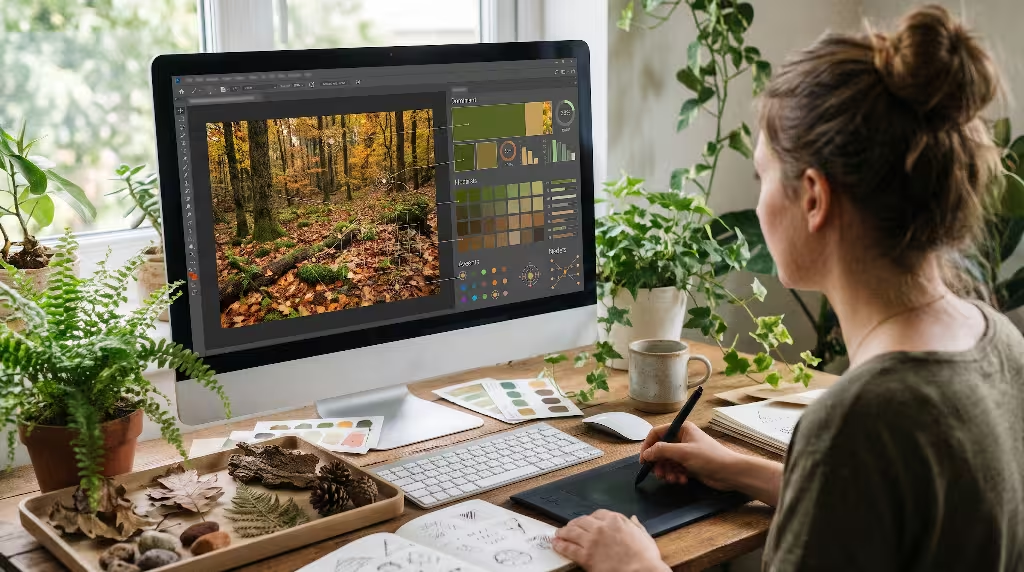
Biophilic design is the practice of connecting people with nature inside built and digital environments. Humans evolved outdoors surrounded by natural landscapes, changing sunlight, diverse plants, and moving water. As a result, our brains and nervous systems are hardwired to process natural patterns with very little mental effort. When we stare at sterile, fluorescent white screens with harsh artificial colors, our eyes get tired and our stress levels increase. Using an AI color palette generator to pull colors directly from natural photography allows designers to bring organic balance into digital spaces.
Natural ecosystems display complex color harmony that artificial color pickers rarely duplicate. Consider a photograph of an eastern deciduous forest floor in late October. You see deep leaf litter browns, muted evergreen mosses, warm ochre beech leaves, and pale gray birch bark. Because all of these elements exist under the same sun and interact through physical light reflections, their colors share an organic relationship. When an AI color palette generator processes that forest photo, it captures the shared light temperature and balanced color steps that nature spent millions of years refining.
Research into human visual processing shows that natural color palettes reduce cognitive fatigue. When an AI color palette generator samples an image of a mountain meadow, the resulting colors feature balanced luminance steps. In physics and biology, this is related to natural fractal scaling. Natural scenes have a balance of wide, gentle background tones and small, detailed focal accents. An AI color palette generator preserves these relationships, creating a palette that feels instantly comfortable and welcoming to the user.
You can also use an AI color palette generator to ground a digital brand in a specific geographic region. For example, if you are designing a website for an organization in the Appalachian Mountains, you can feed an AI color palette generator photographs of native species, such as tall Ironweed, golden Solidago, and dark river stones. The AI color palette generator extracts rich purples, radiant golds, and slate grays that reflect that exact local ecosystem.
If you are designing for a coastal community, you can run images of sea oats, tidal marshes, and weathered driftwood through an AI color palette generator to produce calm greens, sand neutrals, and salt-spray blues. This creates an authentic sense of place that builds subconscious trust with your visitors.
An AI color palette generator bridges the gap between organic biology and computer code. It allows you to step away from generic color presets and build custom palettes rooted in living systems.
Step-by-Step Technical Workflow: From Raw Bitmap to Design System
Building a production design system from a photograph requires a clear, reliable workflow. You cannot simply upload an image, click one button, and paste the results into your live code without checking the technical details. Here is the complete workflow for turning a raw digital photograph into a complete design token system using an AI color palette generator.
Step 1: Image Selection and Preprocessing
The quality of your output depends directly on the quality of your input image. Choose a high-resolution photograph that contains clear lighting and a wide range of values from deep shadows to bright highlights. Avoid images that have heavy artificial filters, extreme digital grain, or blown-out white areas where the camera sensor lost color detail.
Before uploading the image to an AI color palette generator, it is best to prepare the bitmap. Downsample giant camera files. A forty-megabyte RAW file from a digital camera contains far more data than an algorithm needs. Downsampling the image to roughly twelve hundred pixels wide preserves all the color information while allowing the AI color palette generator to run its clustering calculations in seconds. Remove distracting digital artifacts or dust spots that might corrupt your color clusters.
Step 2: Ingestion and Parameter Configuration
Upload your prepared image into your chosen AI color palette generator. Most tools allow you to configure basic parameters before running the extraction:
- Set the target cluster count: Start with five or six swatches for a simple layout, or expand to eight to ten swatches if you need a comprehensive design system with light and dark variants.
- Adjust extraction bias: If your AI color palette generator offers controls for vibrancy, deep tones, or muted shades, choose the setting that matches your project goals. For a calm reader-focused blog, a muted setting works best. For a modern e-commerce storefront, a vibrant setting helps highlight interactive elements.
- Run the initial extraction: Let the AI color palette generator process the pixel clusters and display the candidate swatches.
Step 3: Interactive Refinement
Examine the initial swatches generated by the AI color palette generator. While the algorithm handles the heavy math, human judgment is essential for creative direction:
- Lock key anchor colors: If the AI color palette generator found an exceptional moss green or rich bark brown, lock those swatches in place.
- Resample secondary clusters: Use the interactive point selector in your AI color palette generator to shift cluster centers away from repetitive background pixels and toward subtle, interesting accents.
- Verify tonal variety: Ensure you have at least one deep dark tone, one bright light tone, and two to three distinct mid-tones. If all swatches cluster in the exact same lightness range, your design will lack contrast.
Step 4: Translating Swatches into Semantic Tokens
Once the AI color palette generator delivers a balanced set of hex codes, organize them into semantic design tokens. Do not name your colors after their visual hue, such as blue or dark-green. If you change your brand colors next year, those names will cause confusion. Instead, name tokens based on their functional role in your interface:
--color-surface-base: The primary background tone extracted by the AI color palette generator.--color-surface-elevated: A slightly lighter or darker neutral for cards, dialogs, and navigation bars.--color-text-primary: The highest-contrast tone for headlines and body text.--color-text-secondary: A softer neutral for captions and secondary labels.--color-interactive-brand: The primary accent color extracted by the AI color palette generator for main buttons and key links.--color-interactive-hover: A calculated shift of the brand color for mouse hover and active states.
This structured workflow turns a simple photo into an enterprise-ready color system that developers can implement across web platforms.
Accessibility Auditing: Enforcing WCAG Contrast Ratios
One critical mistake designers make when using an AI color palette generator is assuming that extracted colors are immediately ready for production text. Nature creates beautiful harmonies, but natural scenes do not care about computer screen accessibility. A lovely soft sage green sitting on top of an earthy beige sand background looks wonderful in a landscape photo, but if you put white or black text over that green button, your users might not be able to read it. Every palette produced by an AI color palette generator must undergo strict accessibility testing before going live.
The global standard for digital accessibility is the Web Content Accessibility Guidelines, commonly called WCAG. WCAG exists to ensure that people with low vision, color blindness, or age-related vision changes can read and use digital content easily. The core metric in WCAG is the contrast ratio between two colors, calculated by comparing their relative luminance values. Relative luminance measures how bright a color appears to the human eye on a scale from zero (pure black) to one (pure white).
WCAG defines clear mathematical thresholds for readability:
- Level AA Body Text: Requires a minimum contrast ratio of 4.5 to 1 for standard text (smaller than 18pt or 14pt bold).
- Level AA Large Text: Requires a minimum contrast ratio of 3.0 to 1 for large headings (18pt or larger, or 14pt bold).
- Level AA UI Components: Requires a minimum contrast ratio of 3.0 to 1 for interactive borders, input fields, and icon buttons.
- Level AAA Enhanced: Requires a stricter 7.0 to 1 ratio for standard text and 4.5 to 1 for large text.
When you pull a color palette from an AI color palette generator, test your surface colors against your text colors using a contrast checker. If your extracted forest green and stone gray only produce a 2.8 to 1 ratio, you cannot use them together for readable body copy.
Fixing accessibility issues does not mean you have to throw away the palette your AI color palette generator created. You can preserve the original color identity by adjusting only its lightness value while leaving its underlying hue untouched.
The easiest way to do this is by converting your hex code into the HSL (Hue, Saturation, Lightness) or modern OKLCH color space. If your brand green has a hue of 145 degrees and a saturation of 40 percent, but its lightness of 55 percent fails WCAG testing against a white background, simply lower the lightness value down to 30 percent. The color keeps its organic green character, but it now easily passes the 4.5 to 1 contrast requirement.
Some modern platforms integrate accessibility checks directly inside the AI color palette generator. These tools analyze the contrast between extracted swatches and automatically suggest adjusted variants that meet Level AA or Level AAA standards. Always verify every color combination before deploying your palette to production.
Export Formats and Production Code Integration
After refining your swatches and passing accessibility checks, you need to export your palette from the AI color palette generator into your development environment. Modern digital design relies on standardized formats to keep visual mockups in sync with live code.
An AI color palette generator typically offers several industry-standard export formats:
- Raw Hexadecimal and RGB values: The baseline format for web design, representing colors as six-character hex codes like
#2C5E3Bor three-number RGB sets likergb(44, 94, 59). - CSS and SCSS Variables: Ready-to-paste code snippets that define reusable custom properties for front-end stylesheets.
- JSON Design Tokens: A structured text format that works across platforms, allowing design tools and code repositories to share the exact same token definitions.
- Figma Styles and Variables: Formats that allow designers to import swatches directly into Figma design libraries with a single click.
- Adobe Swatch Exchange (ASE): A binary file format used to import color swatches into desktop creative software like Illustrator, Photoshop, and InDesign.
In modern web development, integrating swatches from an AI color palette generator into CSS is straightforward. Using CSS custom properties at the :root level of your stylesheet allows you to update your site theme from a single location:
CSS
:root {
  /* Surface and Background Tokens from AI Palette */
  --surface-canvas: #f4f6f0;
  --surface-card: #ffffff;
  --surface-border: #d8ded0;

  /* Typography Tokens */
  --text-main: #1c261e;
  --text-muted: #4e5d51;

  /* Interactive Accent Tokens */
  --brand-primary: #2d6a4f;
  --brand-accent: #d97706;
}

body {
  background-color: var(--surface-canvas);
  color: var(--text-main);
  font-family: system-ui, sans-serif;
  line-height: 1.6;
}

button.primary {
  background-color: var(--brand-primary);
  color: #ffffff;
  border: 1px solid transparent;
  padding: 0.75rem 1.5rem;
  border-radius: 6px;
}
Modern CSS gives developers access to advanced color functions that make palettes from an AI color palette generator even more versatile. The oklch() color function provides uniform perceptual adjustments directly in the browser, while the color-mix() function allows you to create hover states and transparent overlays without needing extra hex codes:
CSS
.button-hover-state {
  /* Mix 85% of your primary brand color with 15% black for a natural hover shade */
  background-color: color-mix(in oklch, var(--brand-primary) 85%, black);
}
For advanced applications, you can even run an AI color palette generator dynamically inside the browser. By combining the HTML5 Canvas API with lightweight WebAssembly scripts, your website can let users upload an image, run client-side clustering in real time, and re-theme the entire web application to match their uploaded photograph instantly.
Comparative Evaluation: Top AI Palette Extraction Engines
The software market offers a wide variety of tools for extracting colors from photographs. While they all aim to generate color sets, each platform uses different algorithms, interfaces, and optimization goals. Here is an evaluation of the leading tools in the AI color palette generator landscape.
| Platform | Primary Strength | Underlying Tech | Accessibility Tools | Ideal Use Case |
| Adobe Color | Creative Cloud sync & rule engines | Geometric clustering with harmony logic | Built-in WCAG contrast checking | Professional designers in the Adobe ecosystem |
| Coolors | Speed, ease of use, manual adjustments | Statistical color grouping & lock features | Contrast checker & color blindness simulation | Fast concepting and exploratory UI design |
| Colormind | Deep learning trained on film & art | Deep neural network embedding models | Manual verification required | Generative UI theming and mood-based palettes |
| Canva Palette Generator | Extreme simplicity and zero learning curve | Fast dominant-pixel extraction | Basic display, no contrast tooling | Quick social media graphics and marketing assets |
| Custom Python / OpenCV | Total algorithmic control and custom logic | K-Means in CIELAB / CAM16 color spaces | Programmatic WCAG scripts | Enterprise pipelines and proprietary web tools |
Adobe Color
Adobe Color is an industry benchmark. Its image extraction tool allows you to upload a photo and automatically extract palettes based on distinct mood profiles, such as Colorful, Bright, Muted, Deep, and Dark. Adobe Color stands out because it combines photographic extraction with formal color harmony rules, including complementary, analogous, and triadic relationships. It also includes an accessibility engine that flags potential contrast conflicts and shows how your palette appears to users with different forms of color blindness.
Coolors
Coolors is famous for its rapid generation workflow. When you upload a photo to the Coolors image picker, you can drag sampling points across the image to explore how different pixel groups interact. It allows you to lock favorite colors while re-rolling the rest, making it an excellent AI color palette generator for rapid brainstorming. Coolors also supports rich export options, including PDF, SVG, CSS, and code tokens.
Colormind
Colormind takes a unique approach compared to standard clustering tools. Instead of relying only on the pixels in your uploaded photo, Colormind uses a deep neural network trained on thousands of photographs, famous paintings, and classic movie stills. When you upload an image, this AI color palette generator uses your photo as a creative prompt, filling in complementary shades based on its learned understanding of artistic composition. It excels at predicting secondary and tertiary colors that support your primary photographic tones.
Canva Palette Generator
For users who need results in seconds without technical complexity, Canva provides a lightweight AI color palette generator. You upload an image, and the system instantly returns five dominant swatches with their hex codes. While it lacks advanced controls for color spaces, delta thresholds, or accessibility audits, it is an accessible tool for content creators building quick blog banners and social posts.
Custom Python and OpenCV Pipelines
For development teams that want complete control over their workflow, building a custom AI color palette generator using Python, OpenCV, and Scikit-Learn is an effective solution. A custom script allows you to load an image, convert pixels directly into the CIELAB color space, execute K-Means clustering with customized cluster weights, and automatically run mathematical WCAG contrast checks against white and dark backgrounds. This automated pipeline can process thousands of images in a batch, generating accessible CSS design tokens without requiring any manual graphic design work.
Strategic Commercial Applications: Branding, UI Systems, and Architecture
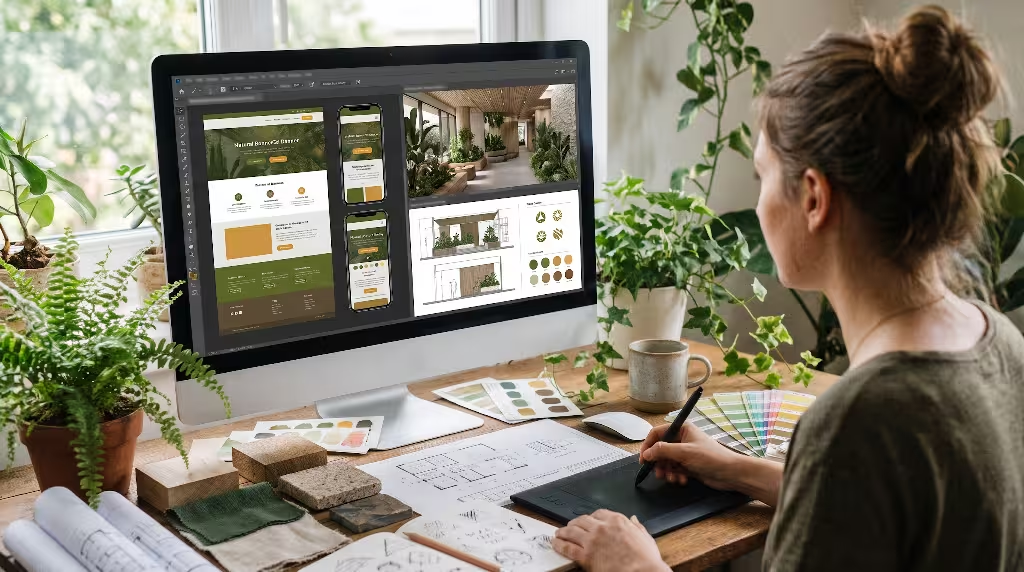
An AI color palette generator is not just a digital novelty; it is a powerful commercial tool across multiple creative industries. By connecting visual design to photographic source material, businesses can create coherent, authentic brand experiences.
Digital Product and UI/UX Design
In software and website development, user experience depends heavily on visual clarity. Many websites suffer from generic digital templates that use identical shades of bright electric blue. By using an AI color palette generator on carefully curated architectural or natural photography, a design team can create a distinctive user interface that sets their product apart. For example, a financial wellness app might process photographs of deep cedar forests and clean granite streams through an AI color palette generator to build an interface that communicates stability, calm focus, and trust.
Brand Identity and Marketing Narratives
A brand needs a cohesive visual identity across physical packaging, marketing materials, and digital touchpoints. An AI color palette generator allows brand strategists to extract consistent color systems directly from campaign photography. If a sustainable outdoor apparel company shoots an editorial photo campaign in the Pacific Northwest, they can feed those authentic location photos into an AI color palette generator. The resulting color tokens can be applied across their website, retail hang-tags, email newsletters, and social media campaigns, creating a unified visual story that reinforces the brand promise.
Architecture, Interiors, and the Built Environment
The value of an AI color palette generator extends beyond computer screens into physical architecture and interior design. Architects and interior designers frequently draw inspiration from surrounding landscapes to select building materials, paint finishes, and interior textiles. By taking site photography of regional stone, native timber, and local vegetation, an architect can use an AI color palette generator to identify the underlying color palette of the building site.
These extracted digital hex values can be mapped to physical color standards, such as Pantone, RAL, or the Natural Color System (NCS). This ensures that interior wall paints, exterior cladding, and acoustic textile panels resonate with the surrounding natural environment, supporting wellness and biophilic comfort for the building occupants.
Common Pitfalls and Mitigation Strategies
While an AI color palette generator is an exceptional design tool, relying on automated software without human oversight can lead to frustrating mistakes. Understanding the common technical pitfalls of automated extraction will help you keep your designs polished and professional.
The Muddy Neutral Trap
When an AI color palette generator processes a highly detailed photograph with many textures, such as gravel paths, tree bark, or sea foam, the clustering algorithm often blends contrasting pixels together into a generic, muddy gray-brown. This happens because K-Means calculates the mathematical average of all pixels assigned to a cluster. If a cluster contains both bright white sand and dark wet rocks, the average comes out as a dull, lifeless taupe.
Mitigation Strategy: To prevent muddy neutrals, increase the number of clusters in your AI color palette generator or manually select sharp, distinct sample areas. Separate your high-contrast highlights from your deep shadows so the algorithm does not average them into mud.
Over-Saturation and Sensor Artifacts
Modern smartphone cameras rely heavily on computational photography. When you take a photo on a mobile phone, internal software automatically increases saturation, sharpens edges, and applies HDR tone mapping. If you feed an oversaturated phone photo into an AI color palette generator, the software may extract harsh, neon tones that do not reflect reality. In digital design, hyper-saturated colors vibrate against dark backgrounds and cause visual strain.
Mitigation Strategy: Inspect your extracted swatches inside a perceptual color model. Lower the chroma or saturation values slightly so the colors feel rested and organic. An AI color palette generator provides a strong starting point, but you should refine the saturation levels to suit comfortable screen viewing.
Lighting and White Balance Distortions
The time of day and weather conditions during a photo shoot dramatically alter the color temperature of an image. A photograph taken during the golden hour just before sunset will cast a heavy orange and yellow tint over every object in the frame. A photograph taken in deep shadow or during blue hour will bathe subjects in a cool blue tint. If an AI color palette generator processes a golden-hour image, your neutral grays and whites may all skew toward warm yellow.
Mitigation Strategy: Before uploading images to an AI color palette generator, perform a quick white-balance correction in your photo editing software. Neutralize unwanted color casts so your extracted whites remain clean and your extracted darks stay grounded.
Insufficient Luminance Spread
An effective user interface requires a wide spread of luminance values: light tones for backgrounds, dark tones for text, and mid-tones for borders and icons. A common error when using an AI color palette generator on low-contrast photos, such as foggy mornings or overcast landscapes, is ending up with five swatches that share the exact same lightness value. While these colors look pleasing next to each other in a swatch row, they cannot be used to build a readable interface because none of them stand out against the others.
Mitigation Strategy: Always check the lightness histogram of your extracted palette. If all swatches sit between 40 percent and 60 percent lightness, manually expand the palette. Use the AI color palette generator to extract the hue family, then create intentional light and dark variations to build a functional design system.
Frequently Asked Questions about AI Color Palette Generators
How does an AI color palette generator extract colors from an image?
An AI color palette generator works by converting a digital photograph into a mathematical data set of color points. It reads the red, green, and blue values of every pixel, then applies machine learning clustering algorithms, most commonly K-Means clustering, to group similar pixels together into distinct color families. Advanced tools convert these pixels into perceptual color spaces like CIELAB or CAM16 to ensure color distances match human vision. Neural networks and computer vision models identify the main subject of the photograph, ensuring that important accent colors are preserved even if they only appear in a small portion of the image.
Can an AI color palette generator ensure WCAG contrast compliance?
An AI color palette generator can calculate and audit contrast ratios, but raw extracted colors from a photograph are rarely WCAG compliant on their own without adjustment. Natural lighting creates subtle, low-contrast relationships that look beautiful in photography but fail digital readability standards. Modern AI color palette generator tools solve this by including built-in contrast checkers. If an extracted color pair falls below the required 4.5 to 1 ratio for standard text, the tool allows you to adjust the lightness value of the swatch while keeping its original hue, making the final palette fully compliant with WCAG Level AA or AAA requirements.
What is the difference between a standard image color picker and an AI color palette generator?
A standard image color picker is a manual eyedropper tool that samples the color value of a single specific pixel where you click. If your mouse lands on a noisy or shadowed pixel, you may get an unexpected, inaccurate color. An AI color palette generator does not look at single pixels in isolation. Instead, it analyzes the entire photograph using statistical modeling and computer vision. It evaluates millions of pixels at once, ignores digital noise, balances dominant tones against visual accents, and automatically builds a unified, harmonic palette that captures the overall feel of the image.
How can I use an extracted palette directly in CSS and Figma?
You can use an extracted palette from an AI color palette generator by exporting your swatches as CSS custom properties or design tokens. In CSS, you paste the hex codes into your :root stylesheet selector as semantic variables, such as --surface-background or --brand-primary. In Figma, you can save the extracted hex codes into your local color styles or design variables library. This allows you to apply consistent color tokens across buttons, text layers, and layout containers, ensuring that your live web development matches your visual prototypes perfectly.
Why should web designers use an AI color palette generator for biophilic design?
Biophilic design seeks to connect digital screen users with the calming, restorative qualities of the natural world. An AI color palette generator allows web designers to extract authentic organic color relationships directly from photographs of natural landscapes, native plants, and geological formations. Rather than guessing artificial hex codes, designers can use an AI color palette generator to capture the balanced luminance steps and natural spectral harmonies found in living ecosystems, resulting in web interfaces that feel grounded, reduce cognitive fatigue, and enhance user engagement.
By combining the mathematical precision of computer vision with human creative direction, an AI color palette generator transforms everyday photography into functional, accessible, and beautiful digital design systems.