Table of Contents
Joining the Fediverse often feels like stepping into a vibrant community garden after spending years inside a crowded commercial shopping mall. On mainstream social media platforms, algorithms dictate what you see, engagement bait drives visibility, and accessibility features are frequently treated as afterthoughts. In contrast, Mastodon operates on decentralized protocols where real people, rather than engagement formulas, shape community norms. One of the strongest and most defining cultural norms across the entire network is writing a proper Mastodon image description for every picture you post.
When you publish visual media on the Fediverse, community members expect you to provide text that explains what the image shows. This practice is not just about following dry technical rules. It is about hospitality, basic politeness, and mutual respect. Many people on the network use screen readers, braille displays, or low-bandwidth connections. When you share pictures without explaining what is in them, you lock those people out of the conversation.
Because Mastodon has no central algorithm pushing posts into feeds, content spreads across servers entirely through manual boosts. If you want people to see and boost your work, mastering the art of the Mastodon image description is essential. This guide covers everything you need to know, from the cultural background and technical mechanics to practical formatting formulas, humor, screenshots, and community etiquette.
Why Mastodon Image Descriptions Define Fediverse Culture

To understand why a Mastodon image description carries so much weight, you have to understand the social contract of the Fediverse. On traditional platforms like Instagram or X, users rely on automated feeds to deliver an audience. On Mastodon, your reach depends entirely on individual people choosing to boost your posts to their followers.
Over many years, the Fediverse community has developed a strong culture of mutual aid and digital accessibility. People who rely on assistive technology, including blind, visually impaired, and neurodivergent users, helped build the foundations of these communities. Because of that shared history, providing a thoughtful Mastodon image description is viewed as a basic form of social hospitality. Leaving an image blank is seen as walking into a room, setting a mystery object on the table, and telling a portion of the room that they are not allowed to know what it is.
This cultural norm has led directly to the famous community slogan: No Alt Text, No Boost. Across thousands of independent servers, high-profile accounts, server administrators, and everyday users have a strict policy. If a post includes an image without a Mastodon image description, they will not boost it, no matter how clever, informative, or urgent the post might be. Some users will reply with a friendly reminder, while others will quietly skip the post entirely.
Understanding this principle changes how you view content creation. Providing an effective Mastodon image description is not about corporate compliance or search engine trickery. It is about making sure that every person who comes across your post can experience it fully. When you take the extra minute to write an accurate Mastodon image description, you demonstrate that you respect your audience, which makes people far more eager to welcome you into their timelines and share your posts.
Technical Foundations of Mastodon Image Description Metadata
Under the hood, Mastodon handles images and metadata through the open ActivityPub protocol. When you upload a picture, the system does not simply store the image file. It also packages metadata, such as aspect ratios, focal points, and alternative text, into a structured data format.
One of the greatest advantages of the platform is its generous character allowance. On older platforms, users were forced to squeeze descriptions into tight limits, often resulting in cramped, unhelpful text. On Mastodon, the default limit for a Mastodon image description is 1,500 characters per media attachment. This generous limit gives you enough space to describe complex visual details, transcribe blocks of text, or capture the subtle nuances of an infographic. Some customized instances allow even higher limits, giving creators complete freedom to provide thorough context.
When your post federates, meaning it travels from your home server to other servers across the globe, your Mastodon image description travels alongside it inside the ActivityPub payload. Popular third-party clients such as Ivory, Mona, Elk, and Tusky read this data directly, presenting it to assistive devices or displaying it when a user hovers over the image or clicks an alt badge.
Mastodon also includes built-in software guardrails to help you build good habits. Inside the web interface, you can turn on an automatic warning that stops you from publishing until your images are described. To turn this on, follow these simple steps:
- Open your Mastodon web interface and click on Preferences.
- Select the Appearance or Posting tab, depending on your server version.
- Look for the option labeled “Warn me before posting media without alt text.”
- Check the box and save your changes.
When this setting is active, the interface will show an alert if you try to hit the publish button without adding a Mastodon image description to every image in your draft. This simple setting prevents accidental mistakes and ensures your posts always meet community standards.
The Anatomy of a High-Quality Mastodon Image Description
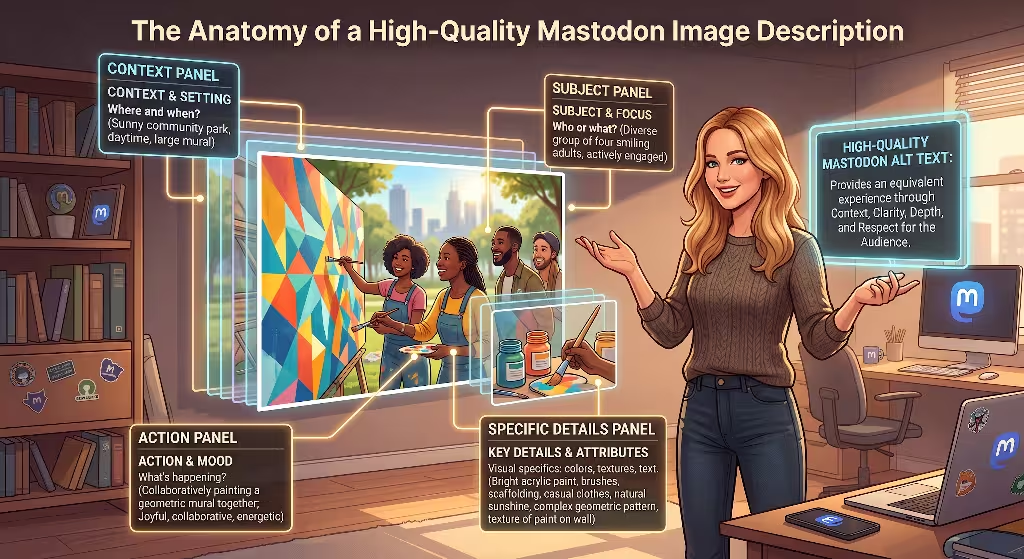
Writing a helpful Mastodon image description is an art that balances clarity, brevity, and emotional tone. You do not need to be a professional novelist, but you do need to organize your thoughts in a way that helps someone build a clear mental picture.
The Hierarchy of Visual Information
When a sighted person glances at an image, their eyes process the main subject first, followed by the surrounding action, and finally the subtle background details. Your text should mirror that natural visual order:
- The Subject: State clearly what or who is in the center of the image.
- The Action: Explain what the subject is doing or what is actively happening.
- The Setting and Context: Mention the location, lighting, colors, and background elements that set the scene.
- The Emotional Mood: Note any facial expressions, atmosphere, or artistic tone that gives the image its personality.
Balancing Detail and Cognitive Load
While having up to 1,500 characters is wonderful, you do not need to use every single character for a simple photo. A good Mastodon image description provides useful facts without burying the listener under unnecessary clutter. For example, if you post a picture of a golden retriever playing fetch in a park, the listener needs to know the dog is happily catching a yellow tennis ball on a sunny grass field. They do not need a list of every single dandelion in the grass. Focus on what matters to the meaning of the post.
Side-by-Side Comparison
To see how this works in practice, let us look at three ways to describe the exact same photograph of a scientist in a laboratory:
- Poor Example: “A photo of science.” (This provides no context, uses redundant filler words, and leaves the user completely in the dark.)
- Acceptable Example: “A woman in a lab coat looking into a microscope in a clean chemistry laboratory.” (This covers the basics, but misses the emotional tone and specific activity.)
- Exceptional Example: “A smiling researcher with protective goggles looks up from a digital microscope in a bright laboratory. On the black lab counter beside her, glass beakers filled with blue liquid sit next to an open notebook covered in handwritten charts.” (This paints a vivid mental picture, shares the relevant details, and fits comfortably within a standard Mastodon image description.)
Notice how the exceptional example avoids phrases like “image of” or “picture of.” Assistive tools already announce that the item is a photo, so repeating those words wastes valuable time for screen reader users.
How to Write Alt Text for Memes and Visual Gags
Memes represent a huge portion of social media communication, but they are often the hardest visual elements for screen reader users to enjoy. Memes rely on irony, shared cultural knowledge, visual juxtaposition, and sharp comedic timing. If you write a sloppy Mastodon image description for a meme, you destroy the joke entirely.
Name the Template First
The fastest way to give context for a meme is to name the underlying template right at the beginning. If your meme uses the famous scene of a man looking back at another woman while his girlfriend looks on in disgust, say so immediately. Write something like: “The Distracted Boyfriend meme.”
By naming the template right away, anyone familiar with internet culture immediately understands the emotional dynamic and the visual setup. They do not need you to describe every piece of clothing before they understand the joke.
Preserve the Comedic Timing
A great joke depends on pacing. You need a setup, followed by a pause, followed by the punchline. When writing a Mastodon image description for a meme, organize your text so the screen reader reads the background setup before delivering the punchline.
Consider a meme that contrasts two different choices:
- Start with the overall visual structure: “A two-panel meme comparing old software to modern software.”
- Describe the top panel: “Top panel shows a sleek, fast sports car labeled ‘Simple text editor from 1998’.”
- Describe the bottom panel: “Bottom panel shows an overloaded freight train stuck in deep mud, labeled ‘Modern web application using 4 gigabytes of memory’.”
By presenting the information in this logical order, the listener gets to experience the exact same comedic beat that a sighted reader gets when scanning the image from top to bottom. A good Mastodon image description preserves the joy of humor for everyone.
Sarcasm and Low-Fidelity Art
Sometimes the humor in an image comes from poor image quality, awkward facial expressions, or intentional visual glitches. If a photo is deliberately blurry to show panic, explain that directly: “A blurry, low-resolution photo of a cat staring wide-eyed at an empty food bowl with exaggerated despair.” Sharing these stylistic details ensures that the tone comes through loud and clear.
Transcribing Text-Heavy Images, Documents, and Data Visualizations
Screenshots of news headlines, social media posts, code snippets, and graphs appear constantly on Mastodon. These images present unique challenges because they contain dense layers of information.
The Rule of Verbatim Transcription
When you share an image where the entire point is written text, such as a screenshot of a news article or a company statement, your Mastodon image description must transcribe that text word for word. Do not summarize the text unless it is completely impossible to fit within the character limit. Summaries often introduce personal bias, skip crucial context, or miss the exact phrasing that makes the document notable.
If the text is slightly too long, transcribe the most critical sections directly, then provide a clear, objective summary of the rest. If you share a code snippet, format the code neatly with line breaks so that a screen reader can announce the syntax in a sensible order.
Deconstructing Charts and Graphs
Charts, maps, and infographics cannot be transcribed with simple copying and pasting. They require a structured breakdown. When drafting a Mastodon image description for data visualizations, use a three-step method:
- The Purpose: State what the chart shows, including the main title and the type of chart (for example, “A horizontal bar chart showing electric vehicle sales by region from 2022 through 2026”).
- The Variables: Describe the axes and measurements (for example, “The vertical axis lists five regions: North America, Europe, Asia-Pacific, Latin America, and Africa. The horizontal axis measures unit sales in millions”).
- The Core Takeaway: Summarize the main trends, outliers, or conclusions (for example, “Sales in the Asia-Pacific region lead significantly at 12 million units, followed by Europe at 8 million, while other regions show steady modest growth”).
Providing this structured breakdown ensures that a blind researcher, student, or casual reader gains the exact same factual insights from your Mastodon image description that anyone else would get from looking at the visual graph.
Why You Should Never Rely on Automated OCR
Many modern phones and operating systems offer built-in Optical Character Recognition, commonly called OCR, which extracts text from pictures automatically. While OCR is a handy starting point, you should never paste raw OCR text into a Mastodon image description without reviewing it carefully.
OCR software frequently confuses similar letters, misreads decorative fonts, and scrambles multi-column layouts into unreadable sentences. It will often read across newspaper columns rather than down them, creating nonsensical gibberish. Always read through automated text to fix spelling, repair broken punctuation, and arrange paragraphs into their proper reading order.
Screen Reader Considerations: Writing for VoiceOver and NVDA
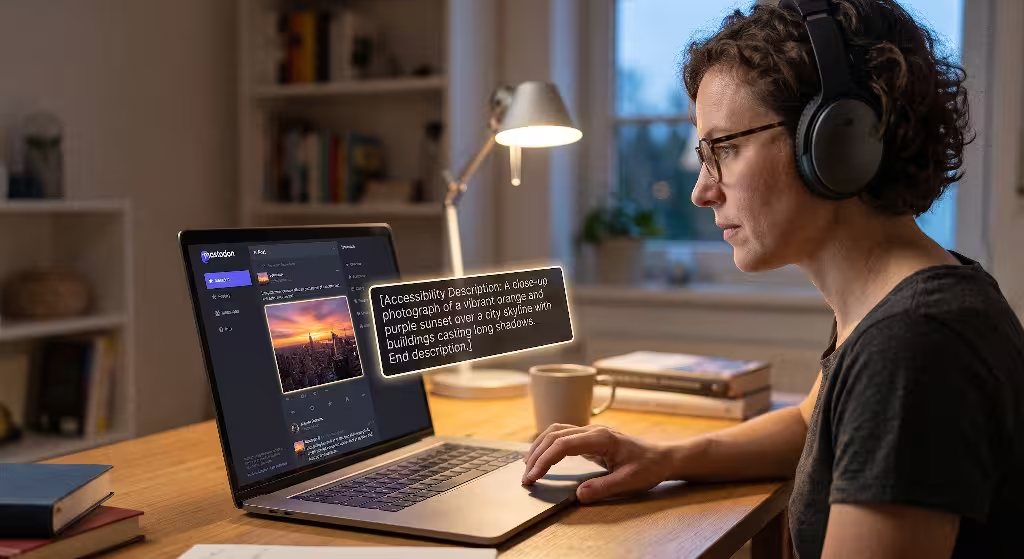
To write text that sounds natural and helpful, it helps to understand how assistive software functions. Common screen readers like Apple VoiceOver, NVDA for Windows, and Orca for Linux convert digital text into synthetic speech or output it to a refreshable braille display.
Screen readers read text literally. They follow every punctuation mark, speak every character, and announce every symbol. Keeping this in mind will dramatically improve how you craft each Mastodon image description.
The Problem with Emojis in Alt Text
Many people love decorating their social media posts with strings of colorful emojis. While emojis can be fun in regular conversation, placing them inside a Mastodon image description creates an annoying experience for screen reader users.
Every emoji has an assigned text label that the screen reader speaks aloud. If you include three clapping hands, a sparkles icon, and a rocket ship inside your alt text, the software will literally say: “Clapping hands, clapping hands, clapping hands, sparkles, rocket ship.” When someone is trying to understand a visual scene, having their synthetic voice interrupted by repetitive emoji labels is frustrating and disorienting. Keep emojis out of your descriptions, or use them very sparingly at the very end of a sentence.
The Power of Proper Punctuation
Punctuation marks act as musical notes for assistive software. Periods tell the software to pause and lower its vocal tone, signaling the end of a thought. Commas introduce brief pauses that help separate distinct ideas.
If you write a Mastodon image description without any periods or commas, the screen reader will read the entire block of text in one breathless, continuous string. This makes it very difficult for the listener to tell where the description of the subject ends and the description of the background begins. Always write complete, well-punctuated sentences to give the voice synthesizer natural room to breathe.
CamelCase and Hashtags
Sometimes people include hashtags inside their image text. If you must use a hashtag, always write it using CamelCase, which means capitalizing the first letter of every individual word within the tag (for example, #WebAccessibility instead of #webaccessibility). When words are run together in all lowercase, screen readers try to pronounce the whole tag as one giant, nonsensical word. Capitalizing each word allows the software to recognize the individual terms and pronounce them correctly.
The “As Described” Protocol: Avoiding Visual Redundancy
A common question among newcomers is what to do when the main text of the post already explains the image. If you post a photo of a book cover and your main post says, “Reading the paperback edition of Dune by Frank Herbert today,” do you need to repeat all of those words in the description?
The answer is to be helpful without creating boring duplication. Screen reader users find it annoying to hear the exact same sentence read twice in a row: first as the post text, and then immediately again as the image text.
How to Handle Direct Duplication
If your post text contains all the relevant facts, your Mastodon image description should focus on the visual specifics that the post text left out:
- Post Text: “Look at the massive snowstorm hitting our back patio this morning!”
- Helpful Alt Text: “A wooden deck covered in nearly two feet of fresh white snow. A patio table is completely buried, and pine branches in the background are bent heavy under the weight of the snow under a grey winter sky.”
In this scenario, you avoid repeating the words “snowstorm hitting our patio,” and instead describe the actual visual depth and atmosphere of the scene.
If you are sharing an image that literally contains nothing more than what you typed, such as a stylized graphic displaying a short quote that you already quoted in your post, you can write a simple, courteous note in your Mastodon image description: “Graphic displaying the quote stated in the post text.” This confirms to the listener that they are not missing any extra visual jokes, hidden details, or background context.
Managing Multi-Image Posts
Mastodon allows you to attach up to four images per post. Describing four consecutive images requires care so you do not overwhelm your audience. When posting multiple photos of the same event or subject, establish the shared context in the first image, then focus on what changes in the subsequent photos:
- Image 1: “Our black cat, Shadow, curled up sleeping on a red velvet armchair in the living room.”
- Image 2: “Close-up of Shadow opening one eye and stretching a front paw toward the camera.”
- Image 3: “Shadow now standing on the armrest of the chair, yawning widely.”
This sequential storytelling structure keeps each Mastodon image description crisp, informative, and engaging.
Community Bots and Pre-Flight Accessibility Checks for Mastodon Image Descriptions
The open source nature of the Fediverse allows developers to build helpful tools that encourage good behavior. Across the network, automated accounts and client features work together to help users keep their posts accessible.
Helpful Reminder Bots
One popular community tool is the reminder bot, such as @PleaseCaption and similar automated services. Users can choose to follow or mention these bots to set up automated alerts. If you publish a post containing an image without a Mastodon image description, the bot will notice the missing metadata and send you a private, polite mention reminding you to add alt text.
These bots are not designed to shame anyone. They exist as helpful safety nets for busy creators who simply forgot to fill out the description box before clicking publish. Embracing these automated tools shows that you care about maintaining a welcoming presence on your server.
Client-Side Pre-Flight Checks
Many modern Mastodon apps feature built-in reminders that catch errors before your post ever leaves your device. For instance:
- Web Interface: The built-in posting settings allow you to require confirmation before publishing undescribed media.
- Mobile Clients: Popular apps like Ivory, Tusky, and Mona feature bright visual indicators, such as a prominent red or orange warning badge over images that lack descriptions. Some apps will even disable the send button entirely until every image has text attached.
Taking a few minutes to explore your client’s settings and turn on these pre-flight checks ensures that you never accidentally skip writing a Mastodon image description.
The Ethics of Automated Artificial Intelligence Captions
In recent years, artificial intelligence tools that automatically generate image captions have become widespread. While AI can help describe an image in an emergency, relying on unedited AI output across the Fediverse is strongly discouraged.
Automated AI tools frequently make embarrassing mistakes. They misidentify people, hallucinate objects that do not exist, misread text, and miss the emotional tone or sarcasm behind human images. Furthermore, automated captions tend to sound robotic, clinical, and detached.
If you decide to use an AI tool to assist you when creating a Mastodon image description, always treat the AI output as a rough first draft. Read the text, correct any factual errors, remove repetitive filler phrases, and add the human voice and context that only you can provide. Your followers want to connect with you, not an unedited computer algorithm.
The Retroactive Fix: Editing Descriptions After Publishing
We have all been there. You draft a post, double check your spelling, select a beautiful photo, and hit publish, only to realize with a sinking feeling that you forgot to include a Mastodon image description.
In the early days of social media, making a mistake like this left you with only two unpleasant options: delete the post entirely and lose any early replies, or leave the post up and feel guilty about locking out screen reader users. Fortunately, modern Mastodon software includes full editing capabilities.
How to Edit Media Metadata
You can add or update your Mastodon image description after publication without deleting your post or losing its conversation thread. To fix a post, follow these steps:
- Locate your published post on your profile or timeline.
- Click or tap the three-dot menu button on the post.
- Select Edit from the dropdown options.
- When the composer opens, click on the image attachment to open the media editor modal.
- Enter your new, accurate Mastodon image description into the text field.
- Save your media changes, then click Save Changes on the main post.
+-------------------------------------------------------------+
|                     MASTODON POST MENU                      |
+-------------------------------------------------------------+
|  [Bookmark]   [Mute Conversation]   [Pin]   [ *Edit* ] ...  |
+-------------------------------------------------------------+
                              |
                              v
+-------------------------------------------------------------+
|                     EDIT MEDIA MODAL                        |
+-------------------------------------------------------------+
|  [ Image Preview Window ]                                   |
|                                                             |
|  Describe for people with visual impairments:               |
|  +-------------------------------------------------------+  |
|  | Enter your comprehensive Mastodon image description   |  |
|  | here with full context, setting, and mood...          |  |
|  +-------------------------------------------------------+  |
|                                                             |
|  [ Apply Changes ]                           [ Cancel ]     |
+-------------------------------------------------------------+
Understanding Federation Latency
When you edit a post on your home server, an update message travels across the Fediverse through ActivityPub to notify other servers of the change. Because the Fediverse is a distributed network made of thousands of independent machines, this update does not happen instantaneously everywhere.
Your home server will show the updated Mastodon image description right away. Other servers will receive the update over the following seconds or minutes, depending on network traffic, server load, and background queue processing. If a friend on another server mentions that they still do not see your updated description, give the network a few moments to finish synchronizing the new data across all instances.
How to Respond to Community Reminders
Because the community values accessibility so deeply, other users might occasionally reply to your post with a short, friendly reminder like, “Friendly reminder: please remember to add alt text so we can boost this!”
When you receive a reminder like this, never take it as a personal attack. The user is not scolding you or trying to drive you away. They are inviting you to participate fully in the shared culture of the network. The best response is simple and polite: thank them for catching the oversight, use the edit button to add your Mastodon image description, and let them know the post is updated. Handling reminders with grace shows that you are a collaborative and thoughtful community member.
Disentangling Content Warnings from Image Descriptions
Another central pillar of Fediverse etiquette is the Content Warning, commonly abbreviated as CW. Content Warnings allow creators to place a protective, collapsible cover over sensitive, spoiler-heavy, or heavy topics, giving readers control over what they choose to see.
Because both Content Warnings and alternative text help manage how content is presented, newcomers often confuse their purposes or assume that using one replaces the need for the other. Understanding how these two features interact is critical for smooth communication.
A Content Warning Does Not Replace Alt Text
A common mistake is assuming that placing an image behind a Content Warning means you do not need to provide a Mastodon image description. A creator might think, “I covered the image with a warning label, so anyone who opens it knows what to expect.”
This assumption breaks accessibility completely. When a screen reader user encounters a post with a Content Warning, the software announces the warning label and allows the user to expand the post if they wish. Once they expand the post, their assistive software looks directly for the image attachment metadata. If there is no Mastodon image description attached, the user is left with a blank space and cannot understand the visual material they just unlocked. A Content Warning protects the reader’s emotional comfort, while alternative text ensures sensory access. Both features are necessary.
How to Divide Information Between CWs and Alt Text
To use both tools effectively, divide your text logically based on what each tool is designed to accomplish:
- The Content Warning Field: Use this field to provide a brief, clear summary of the sensitive topic. This allows readers to decide whether they want to view the post. Examples include: “Discussion of car accident,” “Medical photo of healing stitches,” or “Spoilers for season finale.”
- The Post Text: Share your written thoughts, commentary, or context regarding the topic.
- The Image Description: Provide an objective, factual explanation of what the picture actually looks like, without sensationalism or emotional drama.
For example, if you post a photo of a broken arm in a medical cast, your setup should look like this:
- CW Label: “Medical injury: broken wrist in a cast.”
- Post Text: “Finally got my fiberglass cast put on today. Six weeks of healing to go!”
- Alt Text: “A person’s left forearm and wrist enclosed in a bright purple fiberglass cast, resting on an examination table in a clinic.”
By organizing your content this way, you allow every reader to make an informed choice about whether to expand the warning, while ensuring that those who do expand it have full access to the visual details through your Mastodon image description.
Local Server Conventions
Different Mastodon instances have specific local traditions regarding what requires a Content Warning. On some servers, community rules request that users place Content Warnings on images featuring:
- Direct, unblinking eye contact staring straight into the camera lens.
- Uncovered food or large meals, to support users managing eating disorders.
- Political debates, campaign graphics, and election news.
- Flashing lights or high-contrast patterns that could trigger seizures or migraines.
Check your server’s “About” page to learn its specific rules. Whenever you share images that touch on these topics, combine a thoughtful Content Warning with an equally thoughtful Mastodon image description to keep your content accessible and considerate.
Frequently Asked Questions about Mastodon Image Description Etiquette
Why do people on Mastodon care so much about alt text?
Mastodon was intentionally built as an open, community-driven alternative to commercial social networks. From the beginning, accessibility advocates and disabled users played a significant role in establishing the platform’s social norms. Providing text descriptions is considered basic courtesy and mutual respect. Because the platform has no automated algorithm pushing posts, content only spreads when real people choose to boost it. Users and server administrators routinely refuse to boost posts that exclude people by omitting alternative text.
What is the character limit for image descriptions on Mastodon?
The default software allows up to 1,500 characters per media attachment. This generous space allows creators to describe visual scenes, charts, and text thoroughly without running out of room. Some independent servers choose to raise this limit even higher.
Can you edit image descriptions on Mastodon after posting?
Yes. You can edit any post after publication without losing its likes, boosts, or replies. Click the three-dot menu on your post, choose Edit, click on the image to open the media editor, enter your updated text, and save your changes. The update will federate across the network to update timelines on other servers.
How do I turn on alt text reminders in Mastodon?
In the web interface, open your Preferences menu, navigate to the Posting or Appearance settings, find the checkbox labeled “Warn me before posting media without alt text,” and save your preferences. When enabled, this feature prevents you from publishing a post until you add text to every attached image. You can also follow automated reminder accounts like @PleaseCaption for direct message alerts.
Can you use emojis in Mastodon alt text?
You can technically insert emojis, but community etiquette strongly discourages it. Assistive software reads the full text name of every emoji aloud, which creates repetitive, distracting audio clutter for people using screen readers. Emojis should be saved for the main body of your post.
How do you describe memes in alt text on Mastodon?
The most effective way to describe a meme is to name the underlying meme template first (such as “The Expanding Brain meme”), which immediately establishes the cultural context. Next, describe the setup and visual elements in a top-to-bottom order so the punchline is delivered last. This preserves the joke’s comedic timing and emotional payoff.
Practical Checklist for Daily Publishing
To make writing alternative text a natural, effortless part of your daily routine, keep this quick mental checklist handy whenever you prepare to share media:
- [ ] Have I stated the primary subject clearly in the opening sentence?
- [ ] Did I describe the action, setting, lighting, and overall mood without writing unnecessary filler words?
- [ ] If the image contains text, did I transcribe the words accurately rather than relying on unedited OCR?
- [ ] Did I use full sentences with periods and commas so screen readers can pause naturally?
- [ ] Did I keep emojis out of the description to prevent repetitive reading loops?
- [ ] If the image is a meme, did I identify the template and structure the text to preserve the punchline?
- [ ] If the image covers a sensitive topic, did I pair a protective Content Warning with a complete description?
- [ ] Did I verify the text using my client’s preview tool before clicking publish?
Writing a thorough Mastodon image description takes only an extra minute, but that single minute transforms how your content is received across the Fediverse. By choosing to make every picture readable, you remove barriers, welcome new friends into your conversations, and actively contribute to a more thoughtful, accessible, and compassionate internet for everyone.